What is GPS for Action?
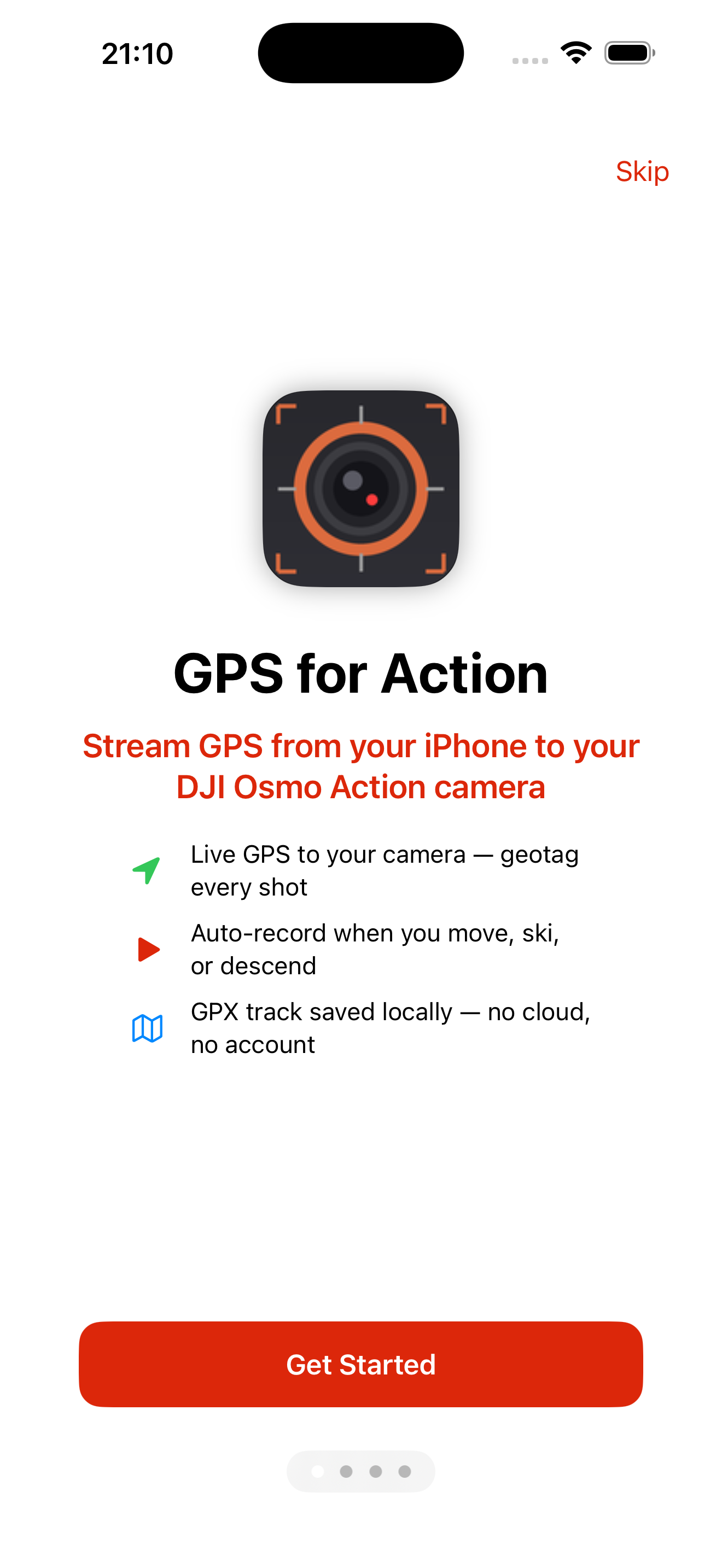
GPS for Action turns your iPhone into a GPS controller for DJI Osmo Action cameras. Connect over Bluetooth and every video you shoot is automatically geotagged — no extra hardware required.
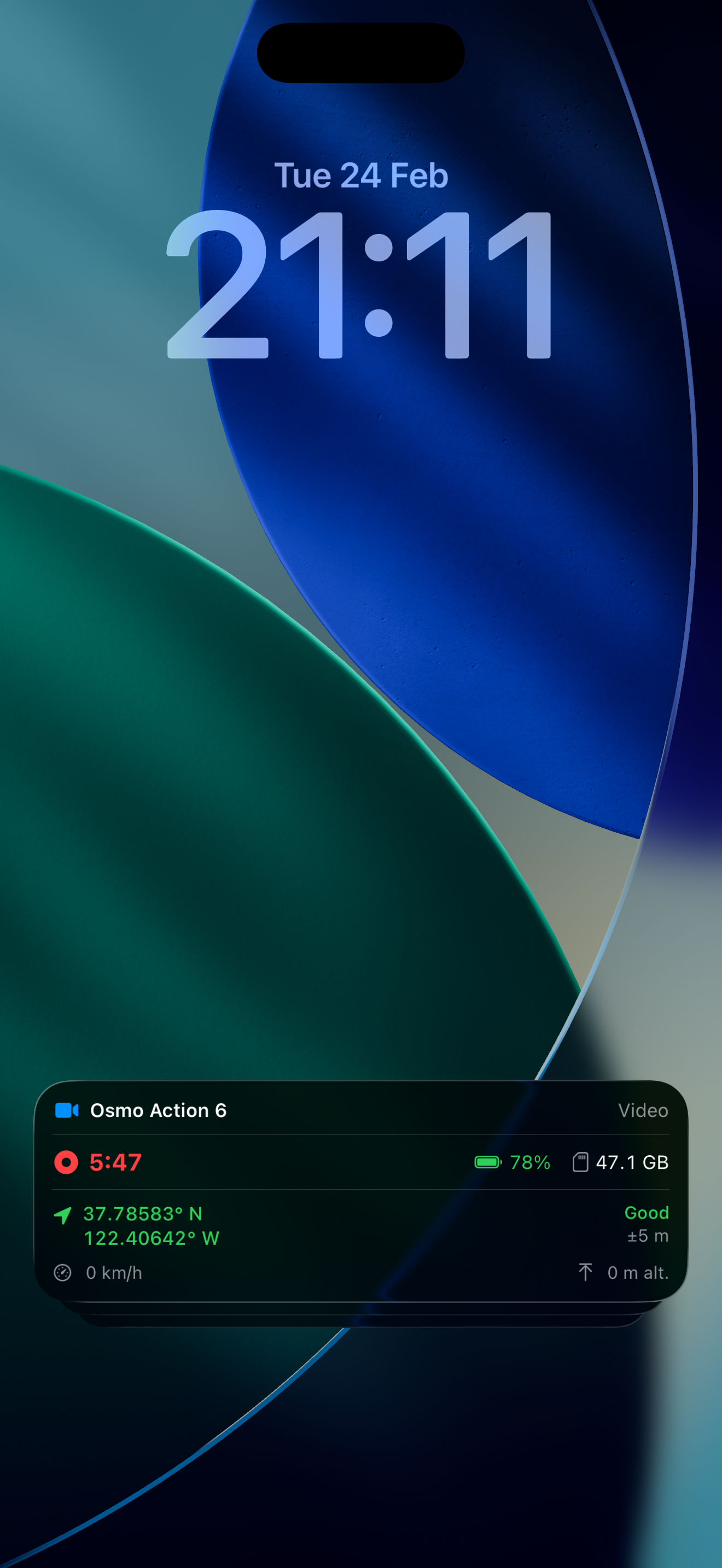
Everything the $99 DJI GPS Remote does — and more. Remote recording, auto-record on descent, movement, or ascent, GPX logging, lock-screen Live Activity, and real-time camera status. All from the iPhone already in your pocket.
App Screenshots
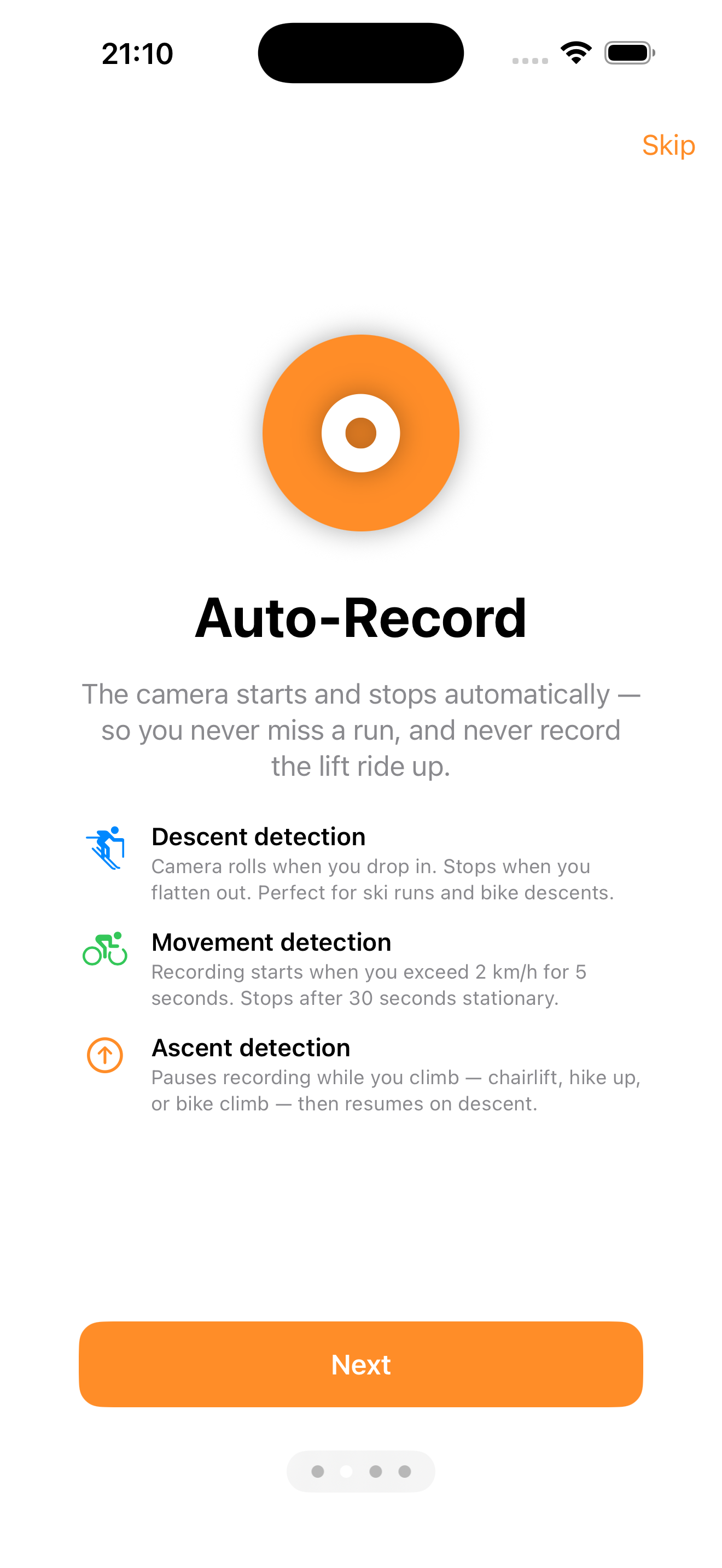
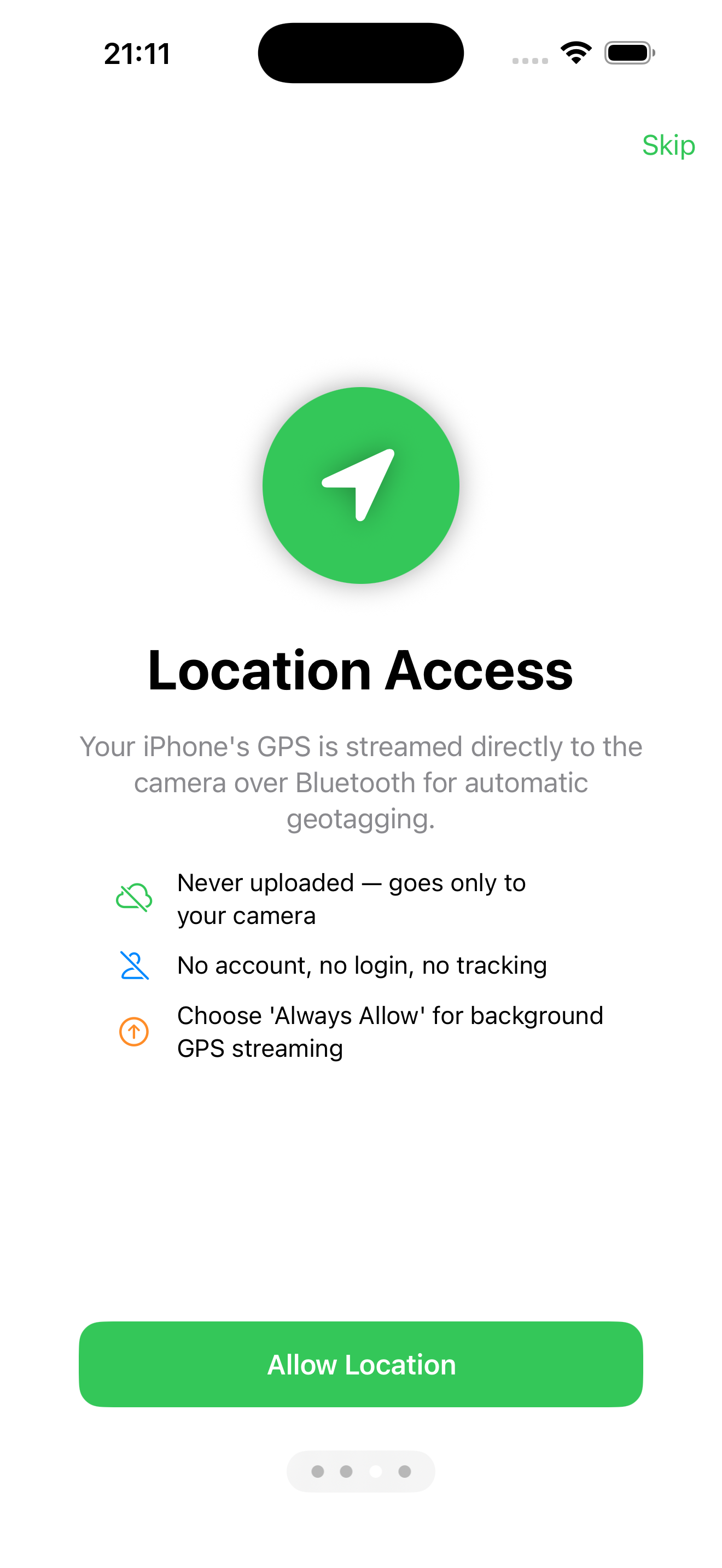
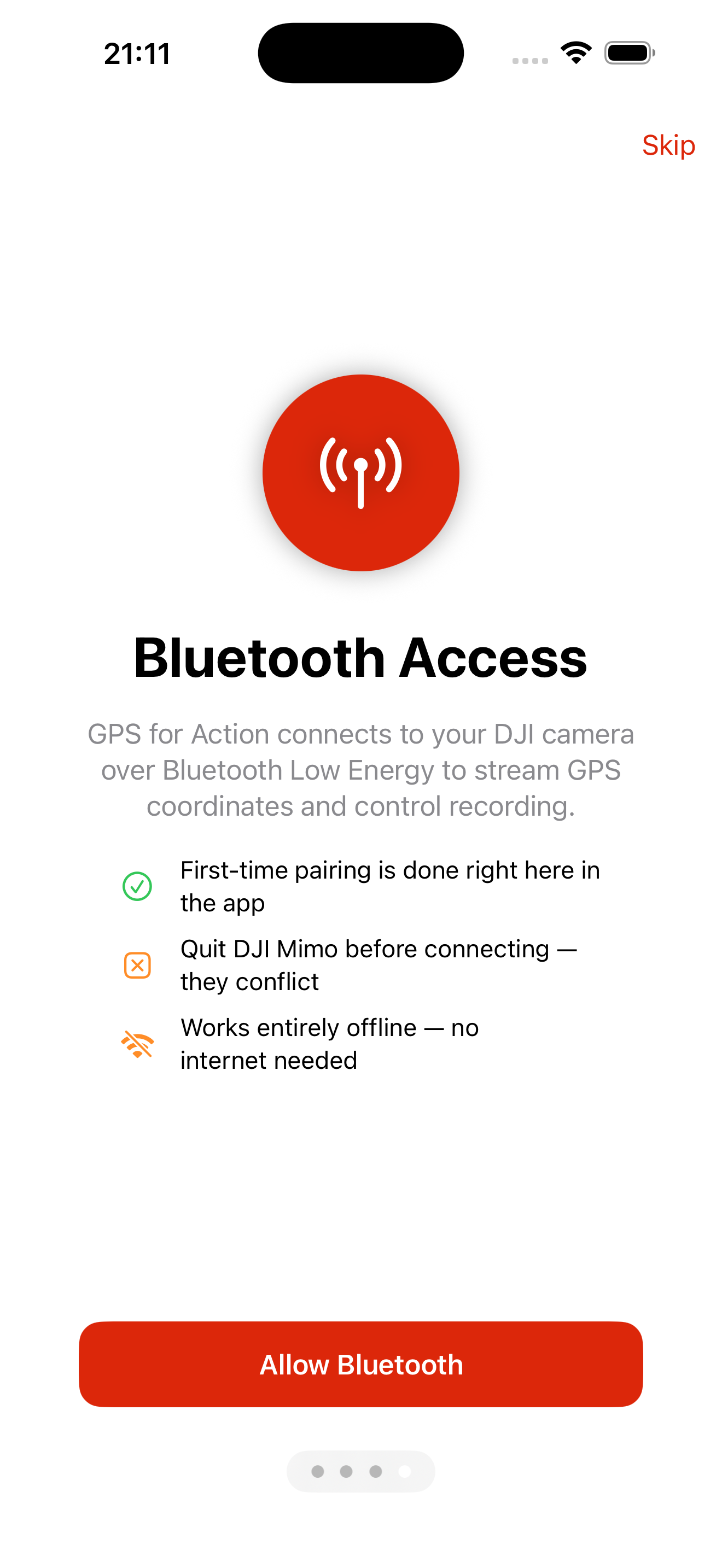
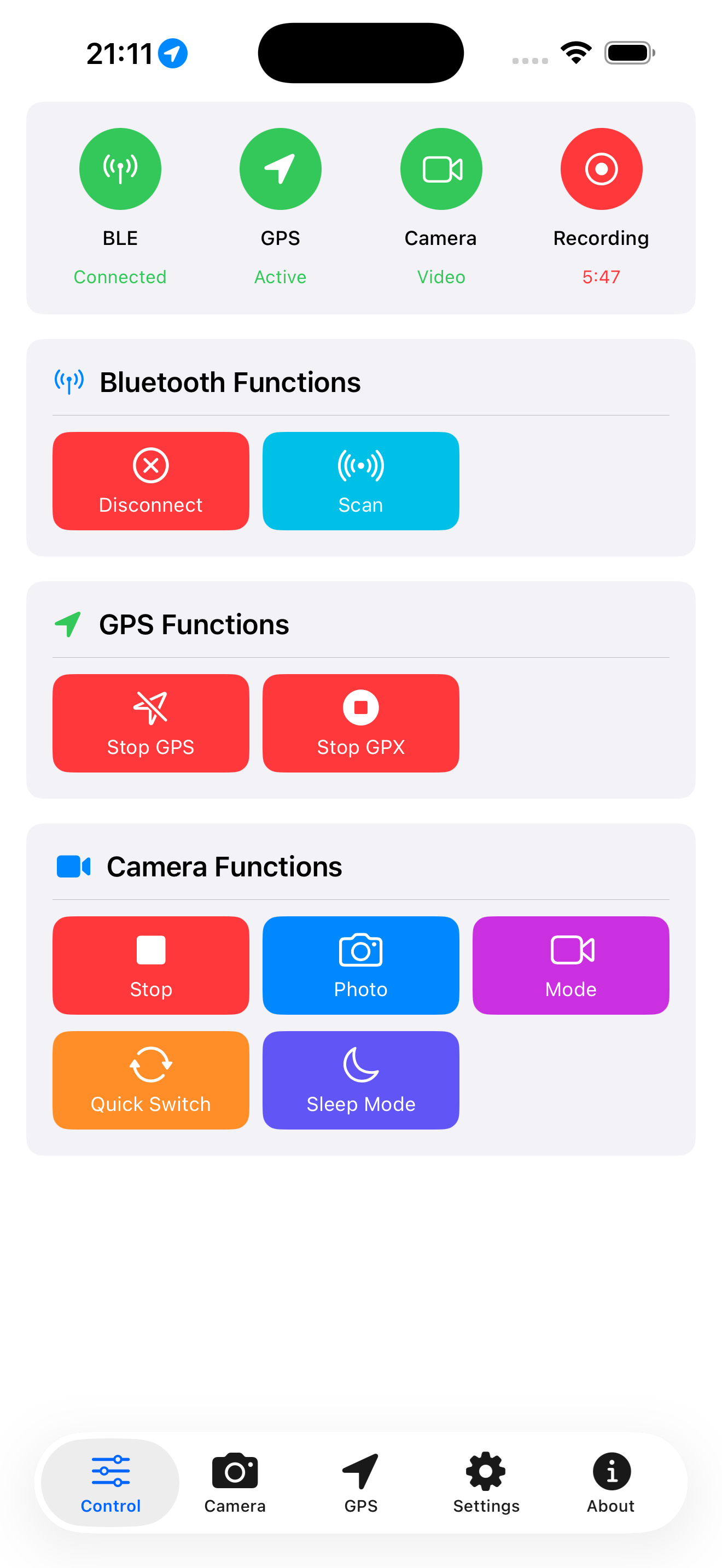
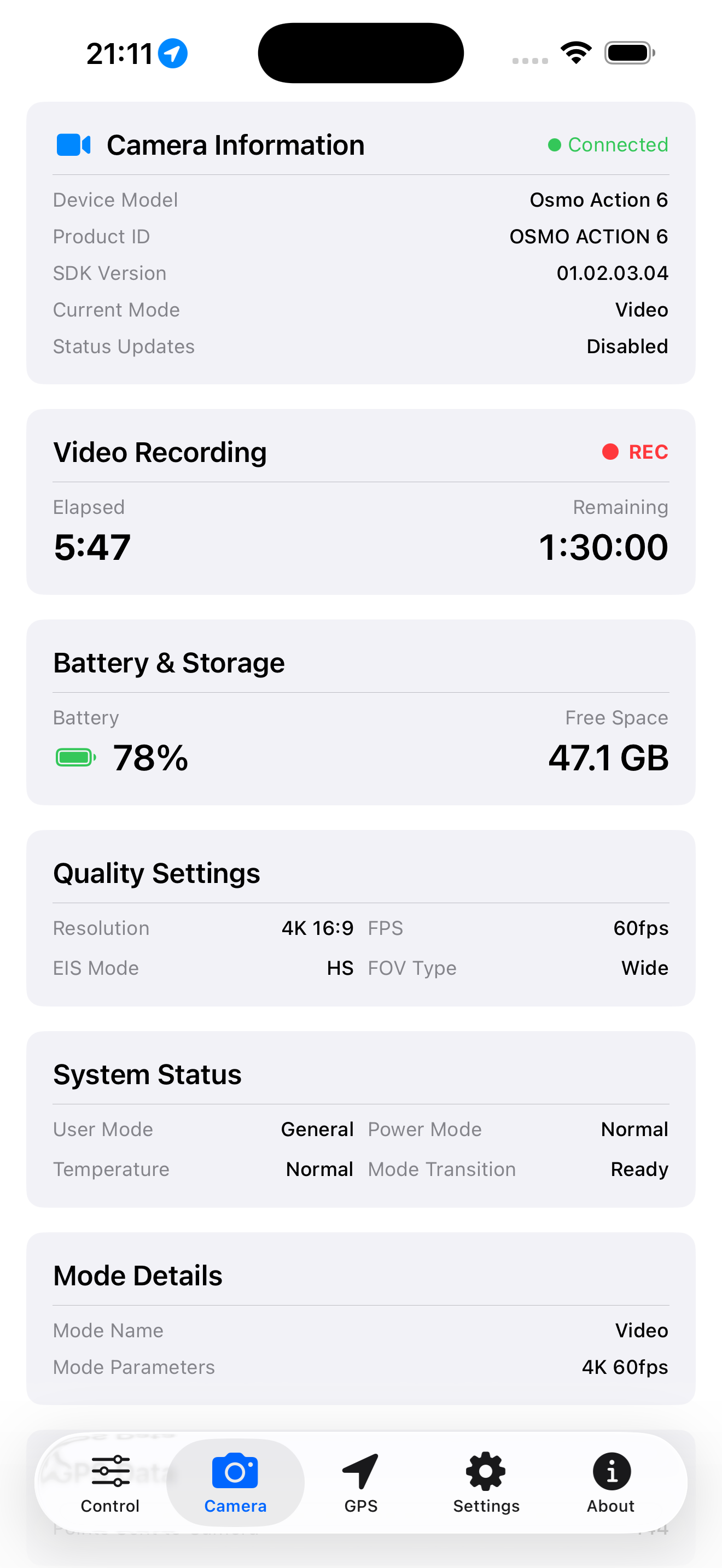
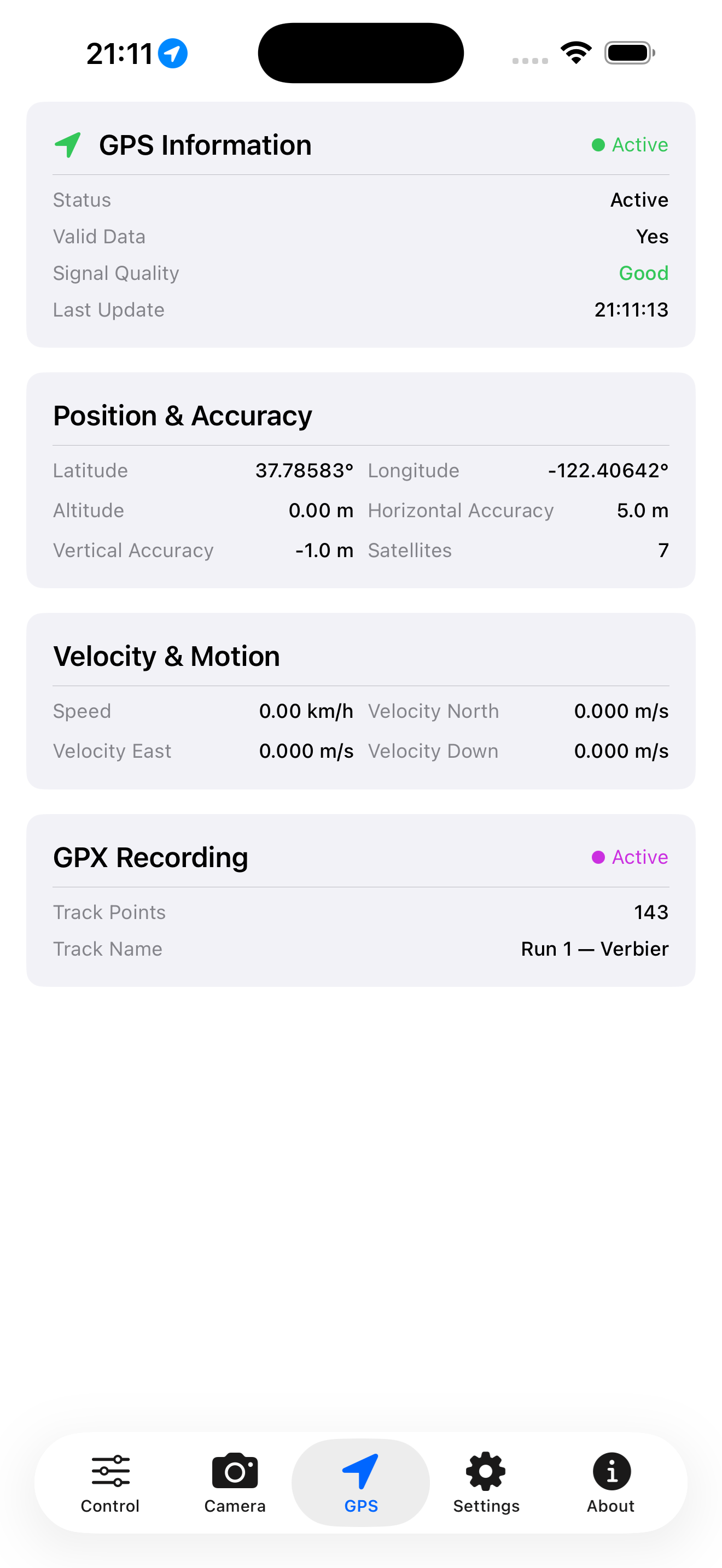
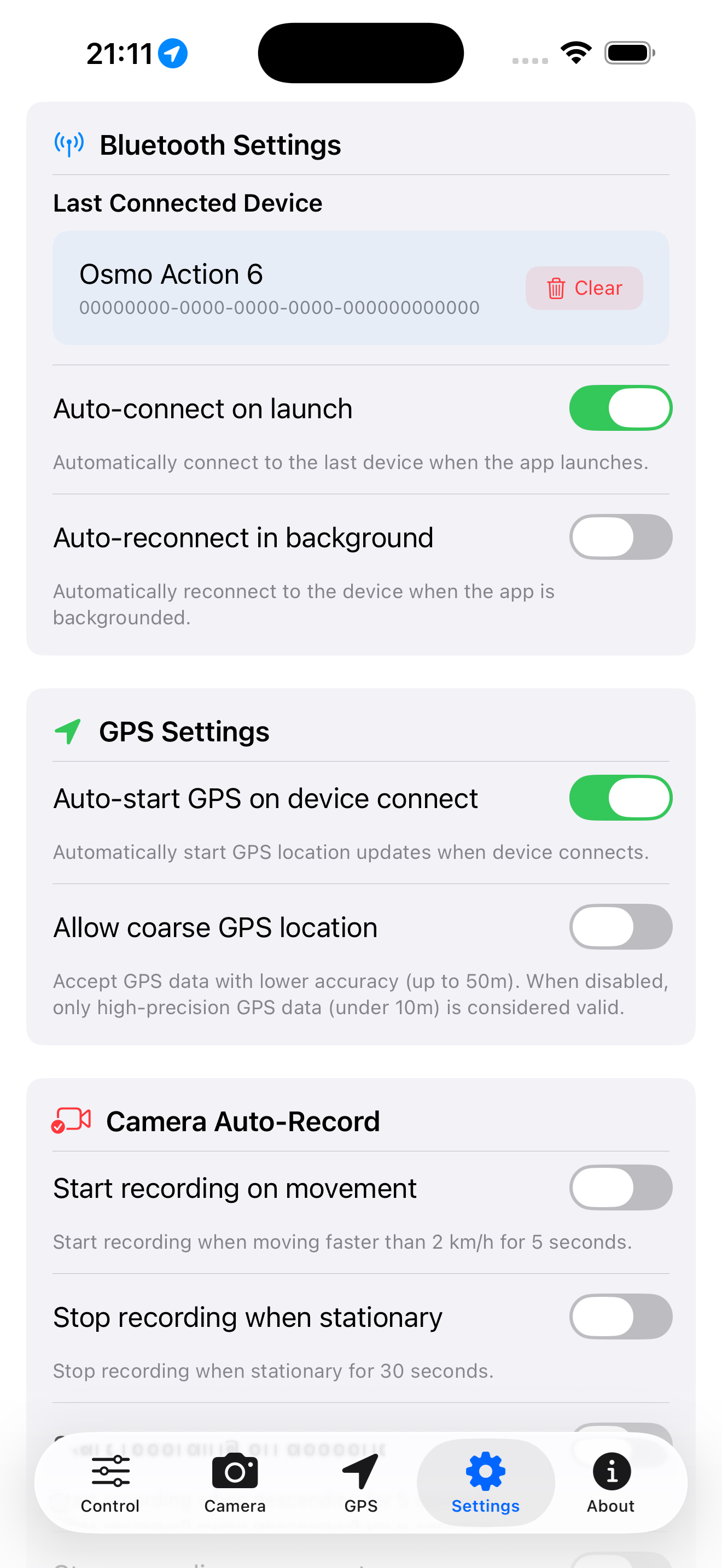
See GPS for Action in action — from onboarding to real-time GPS streaming
Why Not Just Buy the DJI GPS Remote?
The $99 DJI GPS Bluetooth Remote Controller does one thing. GPS for Action does more — on the iPhone already in your pocket.
|
DJI GPS Bluetooth Remote
$99 hardware
|
 GPS for Action
From $2.99 · unlimited $9.99
|
|
|---|---|---|
| GPS geotagging | ||
| Record on/off button | ||
| Auto-record modes | descent · movement · ascent | |
| GPX track logging | ||
| Live Activity on lock screen | ||
| Camera mode switching | ||
| Wake up camera from sleep | iOS Bluetooth limitation | |
| Extra device to carry & charge | Yes | Uses your iPhone |
Features
No additional accessories or manual operations required
Bluetooth Connection
Connect wirelessly to DJI Osmo Action cameras via BLE.
GPS Streaming
Stream real-time GPS coordinates for accurate geotagging.
Remote Control
Start/stop recording, take photos, and switch camera modes.
GPX Recording
Save GPS tracks to GPX files for analysis and sharing.
Auto-Record
Camera rolls when you drop in and stops when you flatten out. Three modes: descent detection (ski runs, bike descents), movement detection (starts at 2 km/h), and ascent detection (pauses on the chairlift).
Dashboard Overlays
Use DJI Mimo editor to add overlays to geotagged videos.
Supported Cameras
Compatible with the latest DJI Osmo Action camera lineup
- DJI Osmo Action 4 Pro
- DJI Osmo Action 5 Pro
- DJI Osmo Action 6
- DJI Osmo 360
How It Works
Get started in minutes with these simple steps
Enable Bluetooth
Turn on Bluetooth on your DJI Osmo Action camera from the camera settings.
Connect Camera
Open GPS for Action on your iPhone and connect to your camera from the Control tab.
Enable GPS
Enable GPS sending to stream GPS live to your camera.
Start Recording
Your videos will now be automatically geotagged with precise GPS coordinates.
Add Overlays
Use DJI Mimo editor to add dashboard overlays like Skiing to visualize your GPS data on your videos.
Privacy & Permissions
GPS for Action requires two permissions to function. Here is exactly what they are used for.
Location Access
Required to read your iPhone's GPS coordinates. Location data is streamed directly to your DJI camera via Bluetooth for geotagging and optionally saved as a GPX file on your device. It is never sent to any server.
Bluetooth Access
Required to connect to your DJI Osmo camera. Bluetooth is used only to communicate with the camera — to send GPS data, start/stop recording, and receive camera status. No data is transmitted to any server.
Good to Know
A few things to keep in mind when using GPS for Action
Disconnect before using DJI Mimo
While connected to GPS for Action, DJI Mimo will not work properly. Disconnect from the camera in the app first.
Cannot wake camera from sleep
The DJI GPS Remote uses a proprietary hardware signal to wake the camera. iOS does not expose the low-level Bluetooth controls needed to replicate this — an Apple platform limitation.
Extend the auto-sleep timer in Settings > Auto Power Off, or press the power button before connecting.
Timelapse limitations
GPS locations are stored only in Videos, not in Timelapses. Accessing the camera in Timelapse mode with Wi-Fi and Bluetooth disabled is unstable and may show incorrect data.
Best GPS accuracy
For the most accurate coordinates, use the app outdoors with a clear view of the sky.
Trial mode
GPS streaming is limited to 3 minutes per session. Unlock unlimited streaming with a quarterly subscription ($2.99 / 3 months) or a one-time Unlimited purchase ($9.99). Your purchase directly supports development of new camera compatibility and features.
Managing Your Subscription
GPS for Action offers two ways to unlock unlimited GPS streaming:
- Quarterly subscription — $2.99 / 3 months, auto-renewing
- Unlimited purchase — $9.99, one-time payment
To manage or cancel your subscription:
- Open the Settings app on your iPhone
- Tap your name at the top
- Tap Subscriptions
- Select GPS for Action and manage or cancel
You can also manage subscriptions directly in the App Store subscription settings.
Contact Support
Have a question, found a bug, or need help getting started? We're happy to help.
When contacting support, please include your iPhone model, iOS version, and a description of the issue.